
Build an APK
When your script is ready, you can package it as a standalone APK. There are two main modes:
- Single-file package — only one
.jsfile is bundled. If that file depends on other scripts or assets, they will not be included. Use a project instead (see Projects and assets). - Project package — bundles the whole project folder (see the same guide).
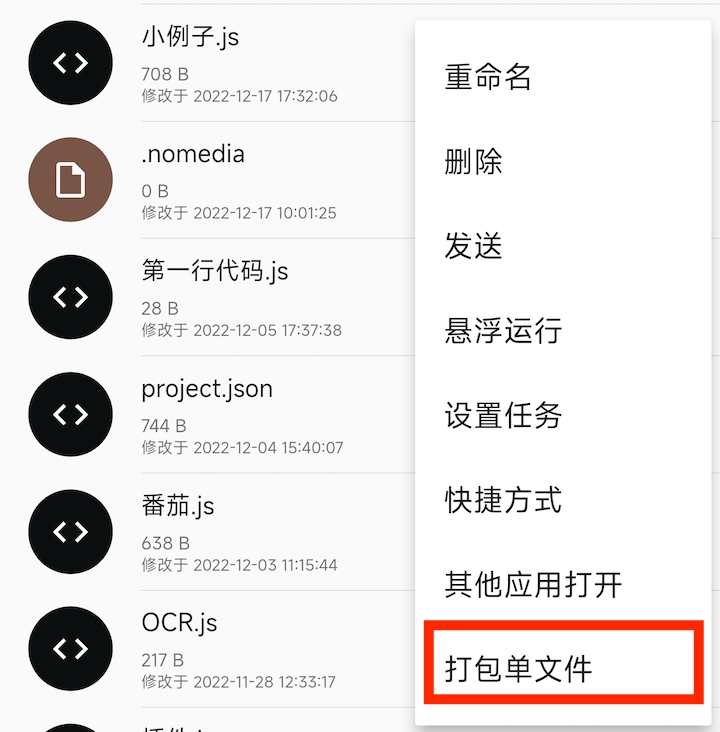
In the file list, tap the ⋮ menu on the file you want to ship, then choose Package single file.
The packaging screen exposes many options—permissions, package name, app label, and more. Adjust what you need, then tap the checkmark in the lower-right corner to start the build.
Below is a concise tour of the important groups.
App metadata
- App name — label shown on the launcher after install.
- Package name — unique application id. Same package + signature can upgrade in place. Use only letters, digits, underscores, and at least one dot (e.g.
com.example). Invalid ids may fail at install with “package appears to be corrupt” style errors. - Version name — user-visible version string (e.g.
1.10.2). - Version code — monotonically increasing integer for the store / system; bump on every release.
- Icon — launcher icon.
- Permissions — manifest permissions. The default list is large (~126 entries). Trim to what you actually need, for example:
- File access —
READ_EXTERNAL_STORAGE,WRITE_EXTERNAL_STORAGE(legacy storage model; behavior depends on Android version). - Foreground work —
FOREGROUND_SERVICE. - Network —
INTERNET. - Wake locks —
WAKE_LOCK. - Boot receiver —
RECEIVE_BOOT_COMPLETED. - Overlay windows —
SYSTEM_ALERT_WINDOW. - Shell via Shizuku-style APIs — e.g.
moe.shizuku.manager.permission.API_V23when your code depends on that path.
- File access —
If you use a feature but omit its permission, you may get runtime errors or crashes—for example foreground service without FOREGROUND_SERVICE.
Some permissions can be requested at startup; others must only be declared in the manifest and cannot be auto-prompted.
Features
- Built-in icon pack — enable if you reference packaged icons such as
ic_add_black_48dp. - Handle external files — needed for IntentTask flows (open/edit with your app). After enabling, the system may offer your APK when opening matching files from other apps.
- Node.js engine — whether to ship the Node / API v2 runtime (larger footprint—often tens of MB per ABI).
- Auto — include Node when the packager detects v9 /
"nodejs"usage. - Disabled — never bundle Node.
- Enabled — always bundle Node.
- Auto — include Node when the packager detects v9 /
- Plugins — check the plugins you use (ML Kit OCR, FFmpeg, …) so their native bits are copied into the APK. Built-in OCR paths may not need extra plugin toggles—follow in-app hints for your version.
Build options
- Obfuscation / encryption level — see the blog post Encryption levels.
- CPU ABIs — defaults to the current device ABI.
arm64-v8ais faster and heavier; many emulators still preferarmeabi-v7a. Pick dual-ABI if you need wider compatibility. - Obfuscate component names — randomizes manifest names for activities/services/receivers. Build times grow a lot; keep the app foreground during packaging so the OS does not throttle the worker.
Runtime UI
- Hide log console — whether to show the floating log window. May be ignored when your script already has a full-screen UI. Avoid fully headless scripts unless you know the implications—background kills and missing overlays are harder to debug.
- Show splash — startup splash (defaults to branded artwork). Even when disabled, first launch may still show a splash while the engine initializes.
- Splash text — defaults to “Powered by Auto.js Pro”.
- Splash icon — defaults to the app icon (does not cover the full screen). For full-screen art, use the custom splash flow shown under in-app examples (Project & packaging → custom splash).
Signing
Only apps with the same package name and signing certificate can upgrade each other. For anything you ship long-term, prefer a custom keystore:
- The default debug key is regenerated when you reinstall or clear Auto.js Pro—you cannot recover it. After loss, users must uninstall the old APK before installing a rebuild.
Create a keystore in Signature management (password, alias, alias password). One keystore can sign multiple apps (different alias/password per app is possible; the built-in UI may limit how many aliases you can manage—follow on-screen limits).
Store the keystore file and passwords safely—there is no recovery if you lose them.