
Your First Line of Code
Install the app
Download and install Auto.js Pro from the official website: https://wwwq.lanzouc.com/b02wvkxpe.
Auto.js Pro supports Android 5.0+ devices (including emulators). Due to app hardening, it may not start on devices with Xposed frameworks installed.
After launching the app, register an account. Purchase a lifetime membership in the app to unlock full features.
Write your first line of code
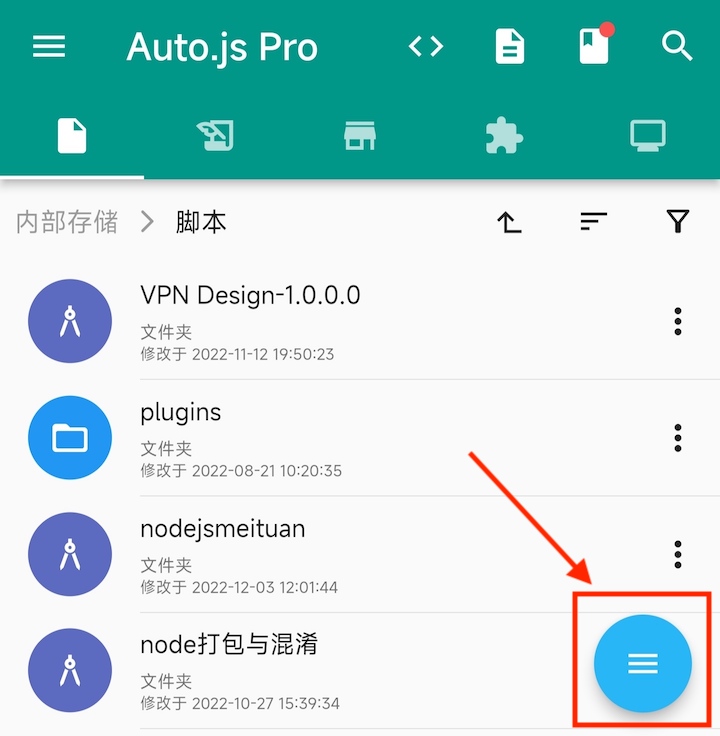
On the home screen, grant file permissions, then tap the floating menu button at the bottom-left and choose Files.
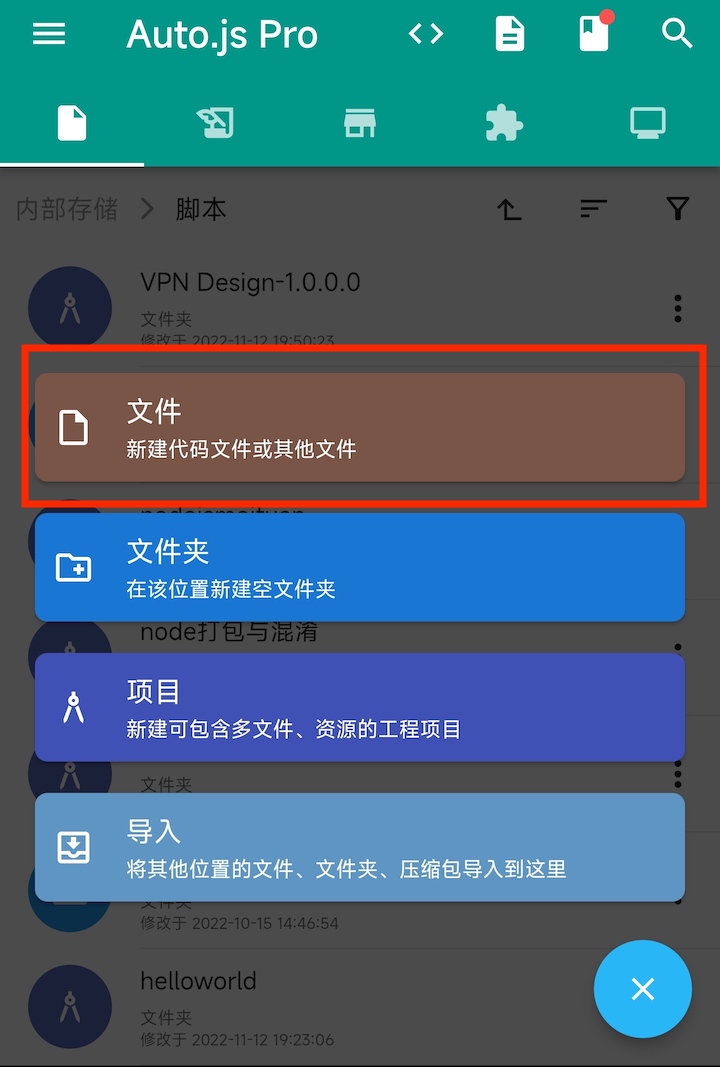
Enter the file name “First line of code” and confirm.
Auto.js will open the editor. Enter:
toastLog("Hello, Auto.js");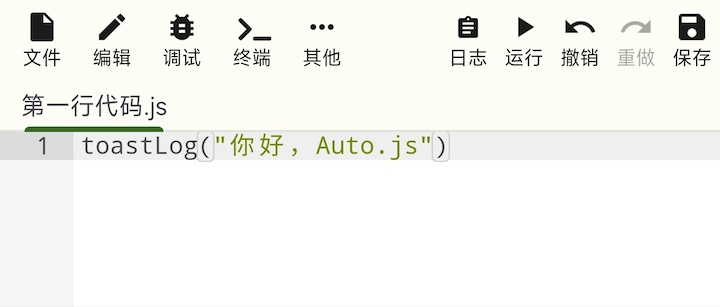
Tap Run (top-right). Auto.js will show a toast message and print a log entry.
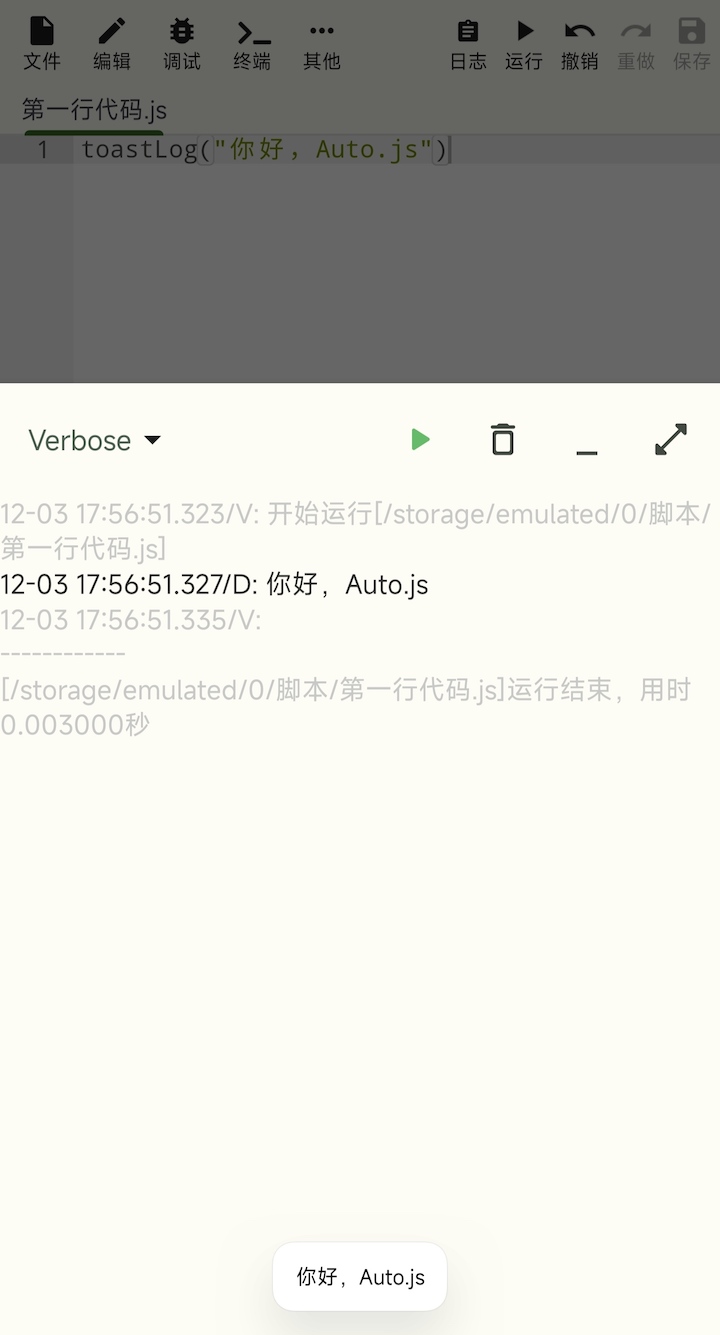
You have now written and run your first script. Auto.js Pro can be used to build tools and small apps, and can also package code into a standalone APK.
Learn JavaScript
The js in Auto.js stands for JavaScript. JavaScript is widely used across web frontend, Node.js backend, and desktop development.
If you are new to programming, it is strongly recommended to learn JavaScript first. Some recommended resources:
- Video: Mosh JavaScript tutorial (Chinese)
- Text: MDN JavaScript
Choose a JavaScript engine
Auto.js Pro currently supports two engines:
- Rhino 1.7.14: ES5 + partial ES6. Used by Free and legacy Pro. The APIs based on it are often called v8 / API v1.
- V8: In Pro 9, Auto.js Pro adds a Node.js 16.x engine. APIs based on it are often called v9 / API v2.
If you are a beginner, start with Rhino + v8 first, then move to Node.js + v9 later.
If you want to learn the differences, see the v9 documentation.
This documentation site (and default AI retrieval) recommends using v8 by default. v9 currently has a memory leak risk and is not recommended as the default option unless you are migrating or explicitly need Node.js features.