
Projects and assets
As scripts grow, you often need several .js files that call each other, plus assets (images, audio, text, …). A project is simply a folder that groups those files. It always contains a project.json file describing name, package id, packaging options, and so on—so you do not have to re-enter the same packaging settings every time.
Create a project from the file manager: open the menu in the lower-right corner and choose Project. Pick a template (or empty project the first time).
After creation you get a folder named after the project. Inside you should see at least:
main.js— entry point; Run project executes this file.project.json— metadata and packaging configuration.
Keep every asset and helper script inside the project folder and reference them with relative paths. That way the packager can bundle them into the APK and paths still work on the device.
Example: a small module
sum.js:
// sum.js
function sum(n) {
  let result = 0;
  for (let i = 0; i < n; i++) {
    result += i;
  }
  return result;
}

module.exports = sum;
main.js loads it with a relative path:
// main.js
const sum = require("./sum.js");
console.log(sum(100));
Example: a text asset
Layout on disk:
main.js
sum.js
apple.txt
project.json
Read apple.txt with a relative path, for example using the files APIs (exact globals vs require("files") depend on engine—see the v8 docs):
const apple = files.read("./apple.txt");Project toolbar and packaging
Open the project folder. In the top toolbar, tap the compass / project icon:
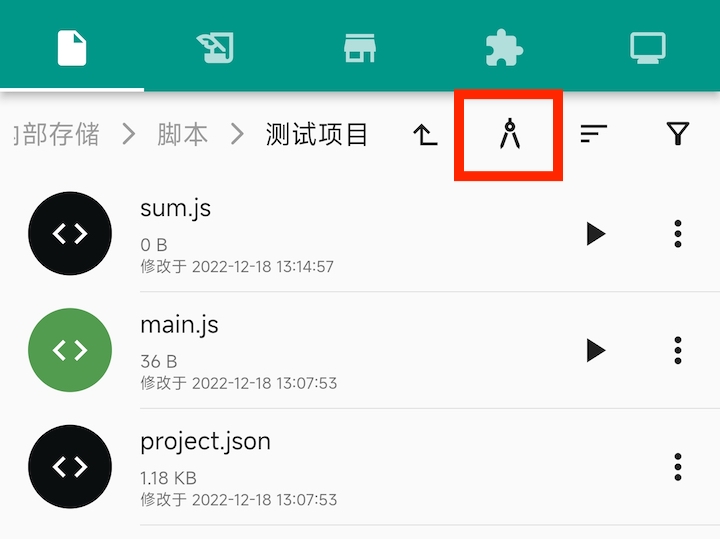
From the menu you can edit the project, build an APK, publish to the store, and more. Building a project APK is the same idea as single-file packaging, but includes all project files and assets. Publish uploads the project to the store; after review, others can download it.
For more packaging fields (permissions, signing, …), see Build an APK and Project settings.